Here's small update to the Move Controller for AI Girl.
There's just one new feature, Quick Resize: Press the right mouse button on the "Move XZ" panel and drag the mouse left or right to shrink/enlarge the currently selected object. Nice for fast size-adjustments to make an object fit better as you position it.
There are also some bugfixes that eliminates some persistent log error messages at startup. Thanks to ManlyMarco for finding the fix for these bugs.
Download here!
Sunday, 29 March 2020

Sunday, 1 March 2020
Gravure plugin v 1.2
The new version of the Gravure plugin for AI girl has a small new button: "Set all colors", that will set all colors for a piece of clothing with multiple color options to the same value.

Download here.
I've also uploaded the source code, find it here!
Saturday, 4 January 2020
Gravure Plugin v1.1
This version of the Gravure plugin adds a new feature, a control panel to adjust a character's clothing state and a few other parameters in the character maker.
It also lets you use the Gravure poses from the Studio in the maker. It's a nice tool for making more interesting cards for your characters. Bring up the panel by pressing the [G] key.
Download here
And that's the last from me for a while! I'll be away for most of January so don't expect any new posts for some time. Cheers, and remember to be nice to your characters!

It also lets you use the Gravure poses from the Studio in the maker. It's a nice tool for making more interesting cards for your characters. Bring up the panel by pressing the [G] key.
Download here
And that's the last from me for a while! I'll be away for most of January so don't expect any new posts for some time. Cheers, and remember to be nice to your characters!
Wednesday, 1 January 2020
Gravure plugin for AI Girl
When you have posed a nice picture of a character for a card, you don't want to redo it just because you've slightly tweaked the character. This plugin adds a new button to the AI girl character maker that lets you overwrite a character card with new data while keeping the image.

Thursday, 26 December 2019
Camera ClipController for StudioNEOV2
This is a small plugin that lets you adjust the Camera Near Clip Plane in AI-Girl StudioNEOV2. The near clip plane determines how close to the camera objects will be rendered; by increasing the value you can make objects close to the camera invisible. Nice for getting rid of obstructing walls, etc.
How to use: press the N key to bring up the ClipController slider at the bottom of the screen, and then drag the slider until your're happy with the view.
Download here.
Monday, 16 December 2019
Move Controller 1.5 for StudioNEOV2
Welcome to my new blog, and we're starting off with a bang with the release of the Move Controller for AI-Shoujo StudioNEOV2

To start the mod, press the "move" button.

Click and drag these buttons to move the selected objects in the XZ or Y axis.

These buttons rotate the currently selected objects (character or item) relative to the camera. Their functionality has changed somewhat since version 1.4
X: Towards or away from the camera
Y: Around the top-down axis
Z: Left or right
Click or drag left-right to rotate, or click the left or right mouse button to rotate exactly 90 degrees in each direction
Y has a special feature; relative rotation. If you have multiple objects selected and click-drag the right mouse button, the selected objects will rotate around the first selected, as if they were parented to it. A nice feature for moving a group of characters around.

Use these coloured buttons to rotate around the guideobject (this thing): 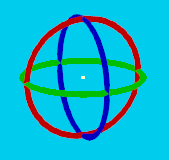
The colour of the button rotates the corresponding coloured circle. The buttons work on both character/items and FK nodes, depending on what you have selected.
These buttons also have another feature: Multi FK! Use the mouse wheel to select one or more FK nodes! Scroll up to select the next node, and down for the previous node. Hold SHIFT while scrolling to select multiple nodes, you can now use the FK buttons to rotate them all at once. The mouse cursor must be inside the move controller window to use this feature.

This makes it a lot faster and faster and easier to get nice curves on items like ropes, chains, tentacles etc. You can hold ALT while scrolling to revert to having only one node selected.
Note that depending on how the bones in an object are laid out, the next FK node might always be what you'd expect. This feature is more useful on some objects than others.

This slider controls the magnitude of both the Move and Rotate buttons. Use it to adjust between doing fast movement or fine position adjustment.

This other slider controls the size of the FK nodes on the selected object. Very useful for seeing what you're doing with multi FK!

Left click the Move to Camera button to move all selected characters/objects to the camera position. Right click to move the first selected one to the camera position, and all other selected characters/objects are moved so that they keep the same position relative to the first selected. Nice for moving groups around.

Click and drag this button to advance or rewind the animation on the currently selected character. Actually it works on both characters and animated items such as pets. It's a nice feature for picking the perfect frame in an animation for your scene, or as a start for making your own pose.

Reset FK will reset the selected FK node(s) to (0,0,0). Sometimes the only way to fix a mess is to start from scratch.
Download from here, and have fun with the Studio!
Subscribe to:
Posts (Atom)